Your first room.
A useful starting point.
Install Hearth, create a coordinated room, try a recoverable revision and export a copy. This guide matches Hearth 0.10.7.
Tested with Blender 5.2.2 LTS on Windows. Your purchase includes the installer and source. Compatibility, license and support.
From a first room to a considered revision.
A captioned walkthrough rendered with Hearth 0.10.2. The workflow also applies to 0.10.7. This is a rendered demonstration, not a recording of the interface or a speed benchmark. Download the video · Get the free offline tutorial · Follow the written tutorial.
Open the workshop.
- Save your Blender work. Use the current hearth-0.10.7-r1.zip from your purchase download page. Keep the installer zipped.
- In Blender, open Edit → Preferences → Add-ons → Install from Disk. Choose the ZIP and enable Hearth Furniture Workshop.
- Put the pointer over a 3D View, press N and choose the Hearth sidebar tab. Use Object Mode.
Upgrading? Disable the earlier add-on, install the new ZIP and re-enable it. Restart Blender if it retains the old module. Keep your editable source scenes.
Start together. Make it yours.
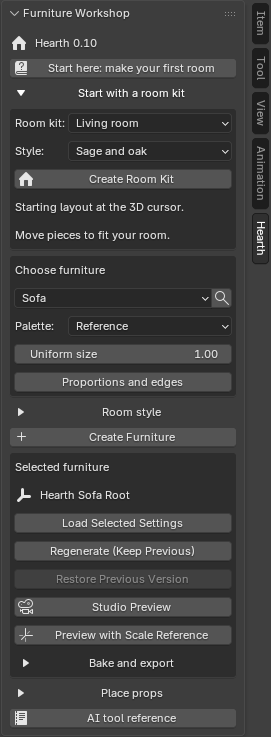
For a quick starting point, expand Start with a room kit, choose Living room and Sage and oak, then click Create Room Kit. The layout appears at the 3D cursor. Four layouts are included: Living room, Home office, Linenwood collection and Reading corner. These are furniture starting layouts: check spacing and fit to your room yourself.
Prefer to work piece by piece? Follow these steps:
- Place Blender's 3D cursor where the sofa should appear. Choose Sofa, or use the magnifying glass to search.
- Keep Reference palette and Uniform size = 1, then click Create Furniture.
- Select the root or any child mesh to use Hearth's controls. Move and rotate the root to move the whole piece.
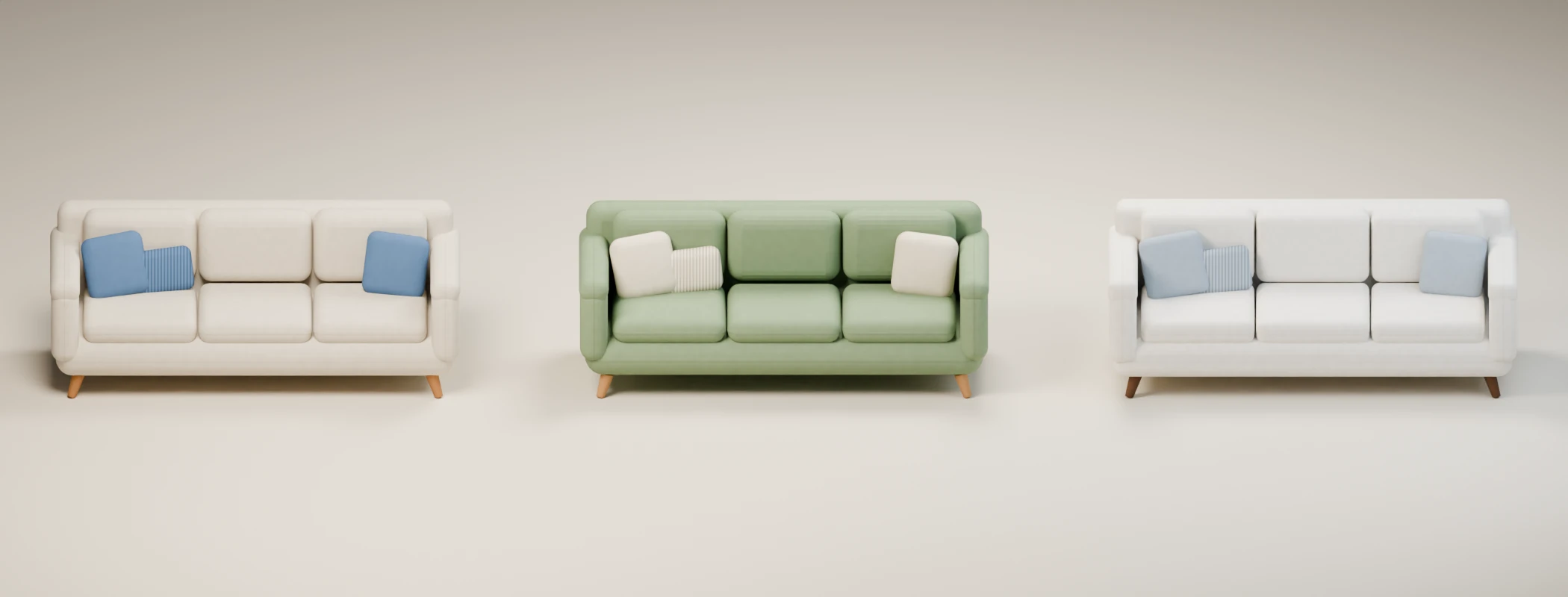
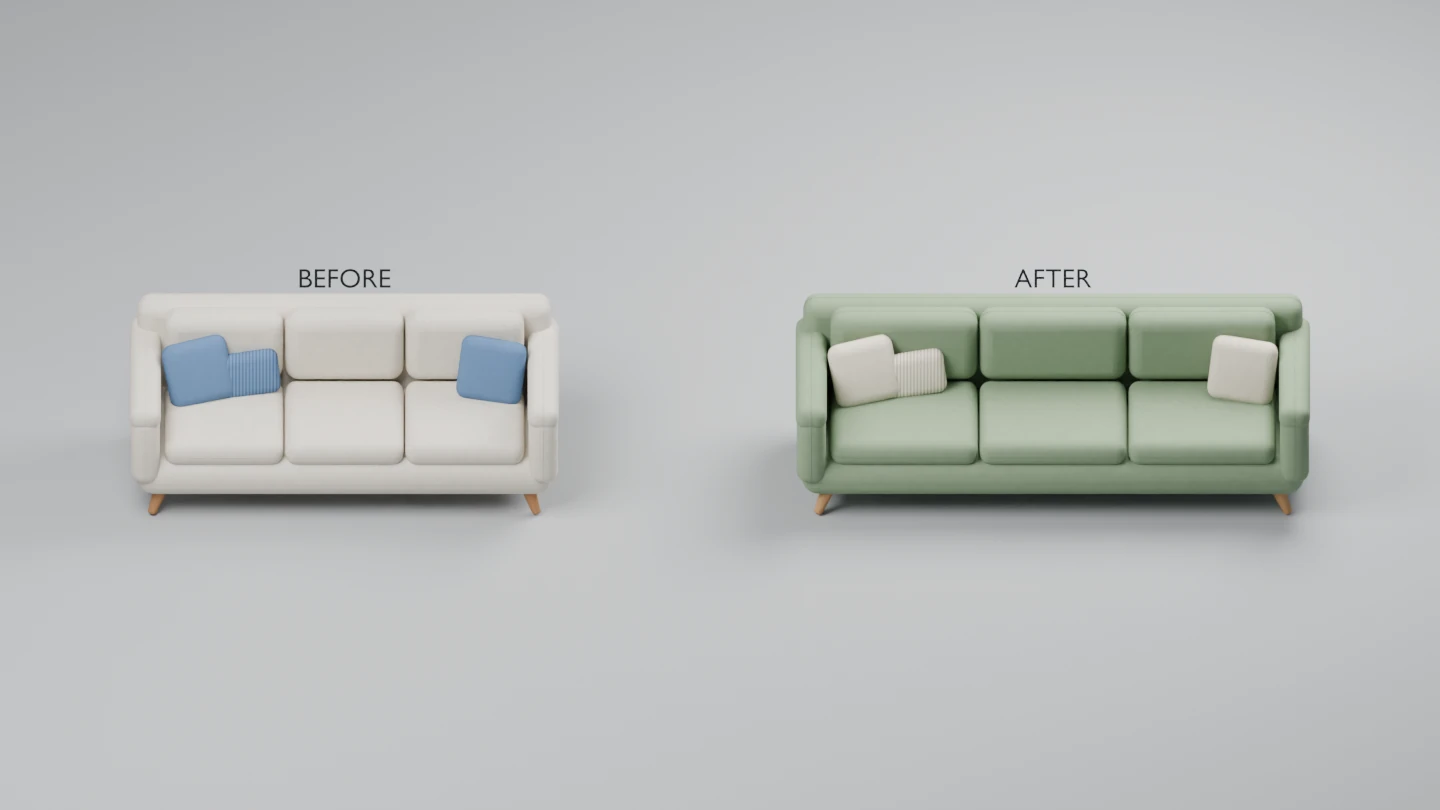
- Open Room style, choose Sage and oak, then Use Room Style. Click Regenerate (Keep Previous) to apply it to your sofa.
- Choose Desk and click Create Furniture. The active room style coordinates the new piece. Arrange it with Blender's normal transform tools.
Styles prepare the next build. To restyle an existing piece directly, select it and click Apply to Selected (Keep Previous). Its recipe stays the same and its previous version remains recoverable. This does not recolor every piece in your scene. In Room style, Edit style colors gives six surface colors; Save and Load share a validated style file between scenes.
Keep a way back.
- Select the desk and click Load Selected Settings before editing it.
- Open Proportions and edges, choose Keep construction thickness and set Width (cm) to 150. Leave uniform size at 1.
- Click Regenerate (Keep Previous). The earlier version remains archived, including manual edits.
- Open Compare Before / After. Press F12 for the lit render, then use Return to Furniture. Preview with Scale Reference adds a 175 cm ruler.
- Use Restore Previous Version to recover the retained version. Use it again to swap back.
Construction sizing supports the original Sofa and Desk and the Linenwood Desk, Dresser and Nightstand within their design ranges. Other recipes can use Stretch all parts, which also stretches legs, handles and bevels. Manual part edits stay in the archived version; they are not transferred to the regenerated design.
Bake a copy. Keep the source.
- Save your source scene and select one Hearth piece. Open Bake and export.
- Choose an Output folder. Start with 512 · Quick check and Portable / custom sizes.
- Click Export Portable Package. The job runs in a separate Blender process. Click Refresh until it passes.
- Use Open Bake Folder. Keep the entire successful folder together: model.fbx, model.blend, textures, manifest, validation and README.
BaseColor is sRGB. Normal, ORM and TintMask are linear. ORM packs occlusion, roughness and metallic into R, G and B. Normals use OpenGL +Y; Unreal may need the green channel inverted. The export is a static joined copy, so retain your original editable scene.
A passed export is not certification of engine materials, collision, glass rendering or gameplay. Use Portable / custom sizes for your own dimensions and styles. Failed jobs retain worker.log and status.json for diagnosis.
Place a lamp on a desk
Create a Desk and TableLamp. Select the lamp, open Place props, choose the desk's Tabletop anchor in Place on, then Snap to Anchor. Rotate first if needed: snapping translates only and does not check edges, overhead clearance or collisions. You can add a custom anchor at the 3D cursor; wall normals use cursor +X and other surfaces +Z.
The same workshop, with local tools.
An assistant that can execute Blender Python on the main thread can discover recipes, inspect explicit furniture instances, create, revise, restore, style, preview, place and export. Hearth does not include a chatbot, a hosted model, a model subscription or an automatic connection to ChatGPT, Claude or Codex. Install Blender Lab MCP separately and use the bundled mcp_server.py adapter with an MCP-capable assistant. The optional named adapter also needs Python and its listed adapter dependencies. The bundled AUTOMATION.md includes configuration, dependencies and the full tool contract; no private repository access is needed.
Bridge setup and first request
Install and enable Hearth in the Blender session your bridge controls. In that bridge's Python tool, call:
import json
from hearth.automation import dispatch
response = dispatch({"schema_version": 1, "tool": "discover"})
print(json.dumps(response))
Call discover first, then catalog and scene. Room assistants can list room_kits and styles, call create_room, and move explicit instances using transform in world metres and XYZ degrees. Call catalog before choosing recipe IDs, then scene to discover instance IDs. Use those IDs for edits; regeneration returns a new ID. Check the returned ok value every time. Poll queued exports until passed, failed or cancelled. The bundled AI tool reference contains the full command contract and example workflow. Never expose an unauthenticated Blender bridge to the public internet.
A few useful answers.
The sidebar or Create button is missing
Enable the add-on, put the pointer inside a 3D View, press N, select Hearth and switch to Object Mode. Help opens in Blender's Text Editor; use that area's editor selector to return to 3D View.
How should I export for my own project?
Choose Portable / custom sizes. Keep the complete successful package together, and review its textures, scale and collision setup in your target application.
Can I use generated models commercially?
Yes. Original generated models, materials, textures and renders have royalty-free commercial rights, including unlimited projects and asset sales, without attribution or royalties. Third-party content you add requires its own permissions. The add-on code is separately GPL-3.0-or-later; customers receive its source and redistribution rights. The installer includes the full terms.
What has been tested?
The Windows Blender 5.2.2 LTS installer passes all 260 recipe build/contract checks, recovery and placement safeguards, and a real local AI-driven render/export workflow. All 260 default models have been reviewed from multiple views. Version 0.10.2 repaired disconnected details and supports. Version 0.10.3 also corrects the patio chair’s back joints to remove overlapping faces in baked exports. Version 0.10.4 connects the grill supports. Version 0.10.5 fits the doghouse cushion inside its walls. Version 0.10.7 connects both café-chair back posts through the seat into the rear legs. These corrections passed targeted geometry checks and three-format export review. Targeted construction checks and Linenwood cabinet foot checks at supported minimum and maximum sizes are included. Upgrade from 0.8.1, saved projects, UI creation/style/recovery and representative opaque/glass exports were checked. Other platforms and target engines are not certified. Part locking, a full archive browser and automatic engine setup are not included.
For support, email alex@stonefletcher.com with your Hearth/Blender version, recipe, steps and expected result. Review logs before sharing them; send only scenes you intend to disclose.
Back to Hearth →Furniture workflows
Furnish a café · Import stylized furniture into Unreal · Create a coordinated room · Change furniture dimensions