Furnish a café with reusable zones
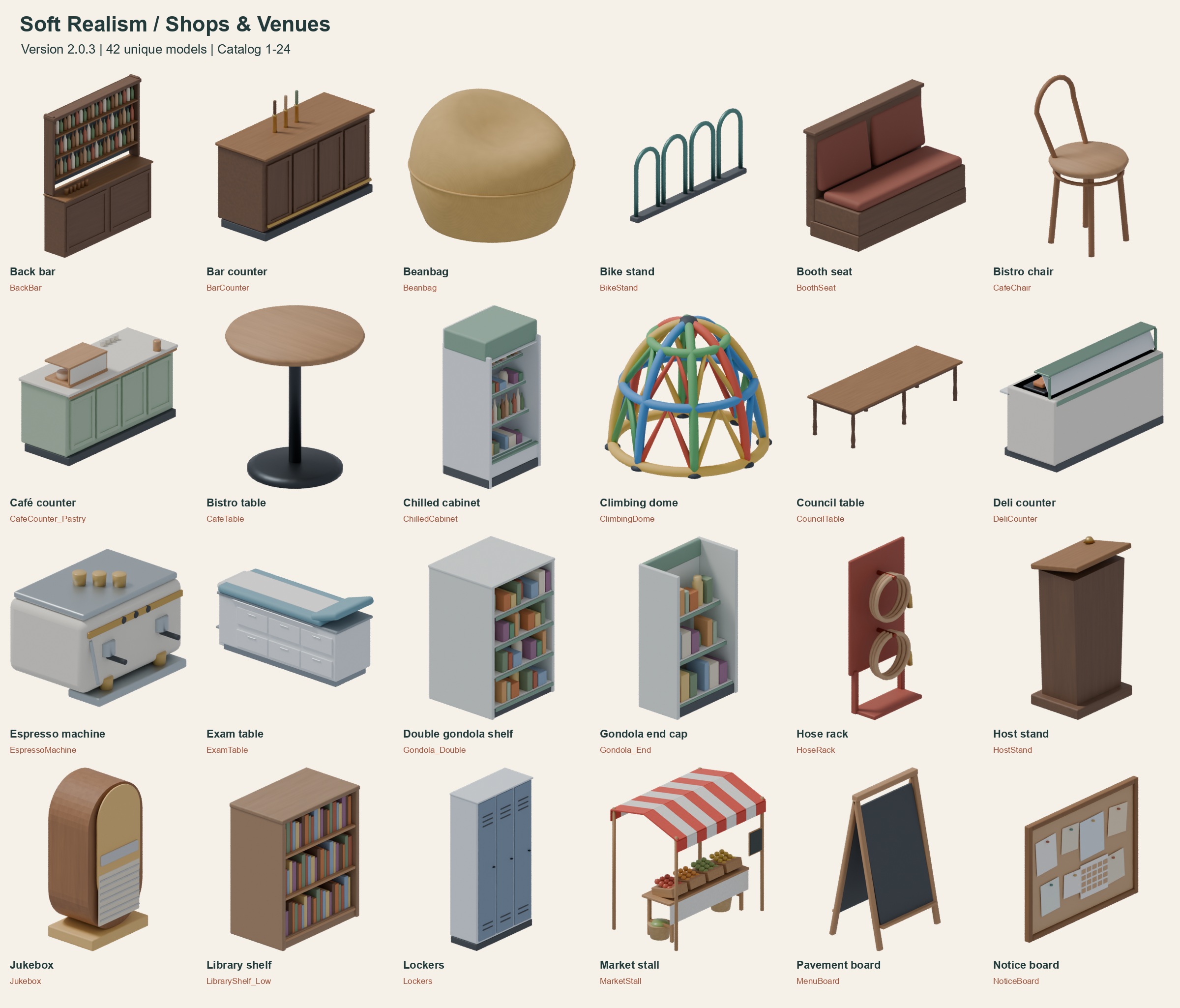
Use Shops and Venues for café and venue furniture. Inspect its named catalogue previews for the exact pieces your layout needs before buying.
- In Blender, block out the room and entrance using simple cubes. Reserve a route from the door to the counter and around seating. Use your project's clearance requirements.
- Append objects from the supplied .blend files, or import individual GLB files. Keep the original extracted files together. Switch to Material Preview to inspect baked textures.
- Build one table-and-seating group. Move chairs until their seats and backs clear the table and nearby walls. Duplicate the group for additional tables, leaving circulation routes open.
- Arrange a service zone along one edge and a seating zone toward the light. Add props last so they do not hide contact points or crowd working surfaces.
- Save a source scene. Test a small selection in your target engine before furnishing the complete venue; check scale, materials and collision there.
Without a purchase, use the sample's Sofa and CoffeeTable to practise a lounge seating zone. The sample guide explains the file layout and material maps.
Import stylized furniture into Unreal
Start with one model from the free sample. These are static meshes; interaction markers are data for your own gameplay setup.
- Extract the complete folder tree. Choose the model's FBX for Unreal. Keep textures available beside it. The pack's FBX uses centimetres, +X front and +Z up.
- Import as a static mesh with import scale 1. Check measured dimensions against CATALOG.csv before placing many copies. Import dialogue labels vary by engine version and importer.
- Inspect or create the material. BaseColor uses sRGB. Normal, ORM and TintMask are linear data; disable sRGB for ORM and the tint mask. Connect ORM red to Ambient Occlusion, green to Roughness and blue to Metallic.
- Normal maps use OpenGL +Y. For Unreal's DirectX workflow, use the texture's Flip Green Channel setting if the green channel has not already been inverted. Inspect the lit result so it is not inverted twice.
- Retain extra material slots for models with glass, screens or records. Check opacity and appearance in the actual scene.
- Configure collision and LODs for your game, then test a character walking around the furniture. Inspect any seat/use markers and wire them to your own interaction code.
The current pack has native Unreal 5.8.3 FBX import evidence. Collision, wind, materials and gameplay remain project-specific. See the engine checklist and Complete Bundle specifications.
Create a coordinated room in Hearth
You need Hearth with its supported Windows / Blender 5.2.2 LTS setup. Save your Blender scene before experimenting.
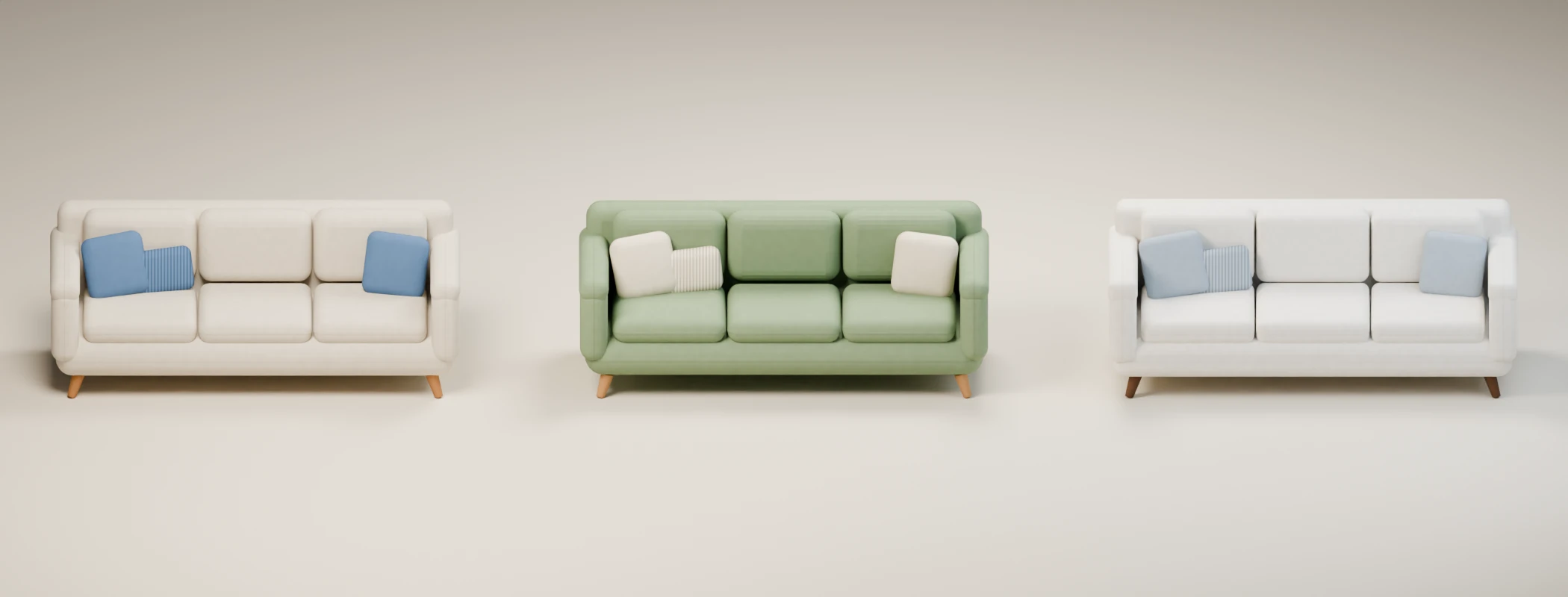
- Open the Hearth sidebar in Object Mode. Under Start with a room kit, choose Living room and Sage and oak, then Create Room Kit. The layout appears at the 3D cursor.
- Check each piece against walls, doorways and circulation routes. The kit is a furniture starting layout, so adjust placement yourself.
- Under Room style, choose a palette and click Use Room Style to prepare the next build. New furniture uses the active style.
- To restyle an existing piece, select it and use Apply to Selected (Keep Previous). Inspect it before repeating for another piece; this does not recolour the entire scene.
- Use Edit style colors for the six surface colours. Save the style file to reuse it in another scene. Retain the source before exporting baked copies.
The first-room guide includes a piece-by-piece alternative. Ready-made packs supply baked models and tint masks; Hearth's recipe and style controls are a separate product.
Change furniture dimensions without remodelling
Use an editable Hearth recipe rather than a baked FBX. Construction-aware sizing supports the original Sofa and Desk and the Linenwood Desk, Dresser and Nightstand within their supported ranges.
- Select the Hearth Desk and click Load Selected Settings. This loads that instance's recipe controls before you edit them.
- In Proportions and edges, choose Keep construction thickness. Set Width (cm) to 150 and leave Uniform size at 1.
- Click Regenerate (Keep Previous). Inspect legs, handles and edges at the new width and check the fit in your room.
- Use Compare Before / After and Preview with Scale Reference to review. Restore Previous Version recovers the retained version.
- Keep the editable source. For an engine copy, use Portable / custom sizes under Bake and export; the strict LifeShare replacement profile is a separate contract.
Other recipes can use Stretch all parts, which also stretches legs, handles and bevels. Manual edits remain in the archived version and do not transfer to the regenerated design. Read the revision guide before changing production assets.
Engine reference: Epic's FBX static mesh pipeline covers mesh, material, collision and LOD import. Its texture properties reference explains sRGB and Flip Green Channel; that reference describes the 4.27 editor, so current interface labels may differ.